Owner guide
Set up your home on RoomsInView
About 15 minutes. You'll sign in with your email (no password), take over your home's listing, and add your rooms, prices, photos and team so families can see real information.
Have these ready
- The email address you want to use for RoomsInView
- Your 9-digit CDSS license number (on your facility license)
- Your monthly prices for each room type, and any care add-on fees
- A few photos from your phone: the outside, the living areas and each room (no residents in the pictures)
- Optional: a photo and a few words about each staff member who agreed to be shown
1. Sign in and take over your listing
Your home is already listed on RoomsInView from its state license record. There are two ways to take it over. Use A if RoomsInView emailed you an invite, otherwise use B.
A1Open the invite email and sign in
The email comes from hello@roomsinview.com with the subject “Your RoomsInView listing for [your home] is ready for you”. The link works for 14 days.
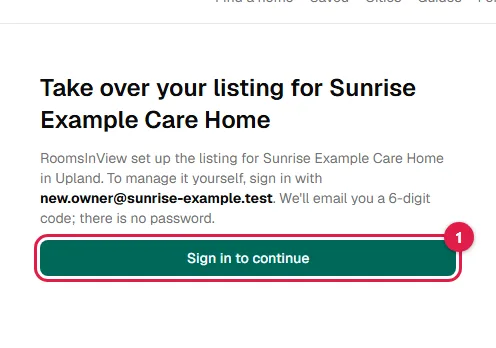
- 1Click Sign in to continue. Use the same email address the invite was sent to.
A2Take over your listing
After you enter your sign-in code (see B2 and B3 below), you come back to this page.
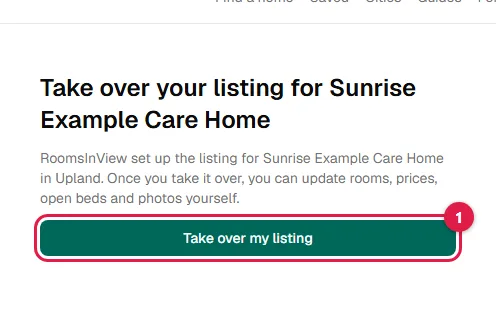
- 1Click Take over my listing.
A3You're in
The listing is yours now. RoomsInView may have already added your rooms and photos; check them and continue with part 2.

B1Go to the care home page
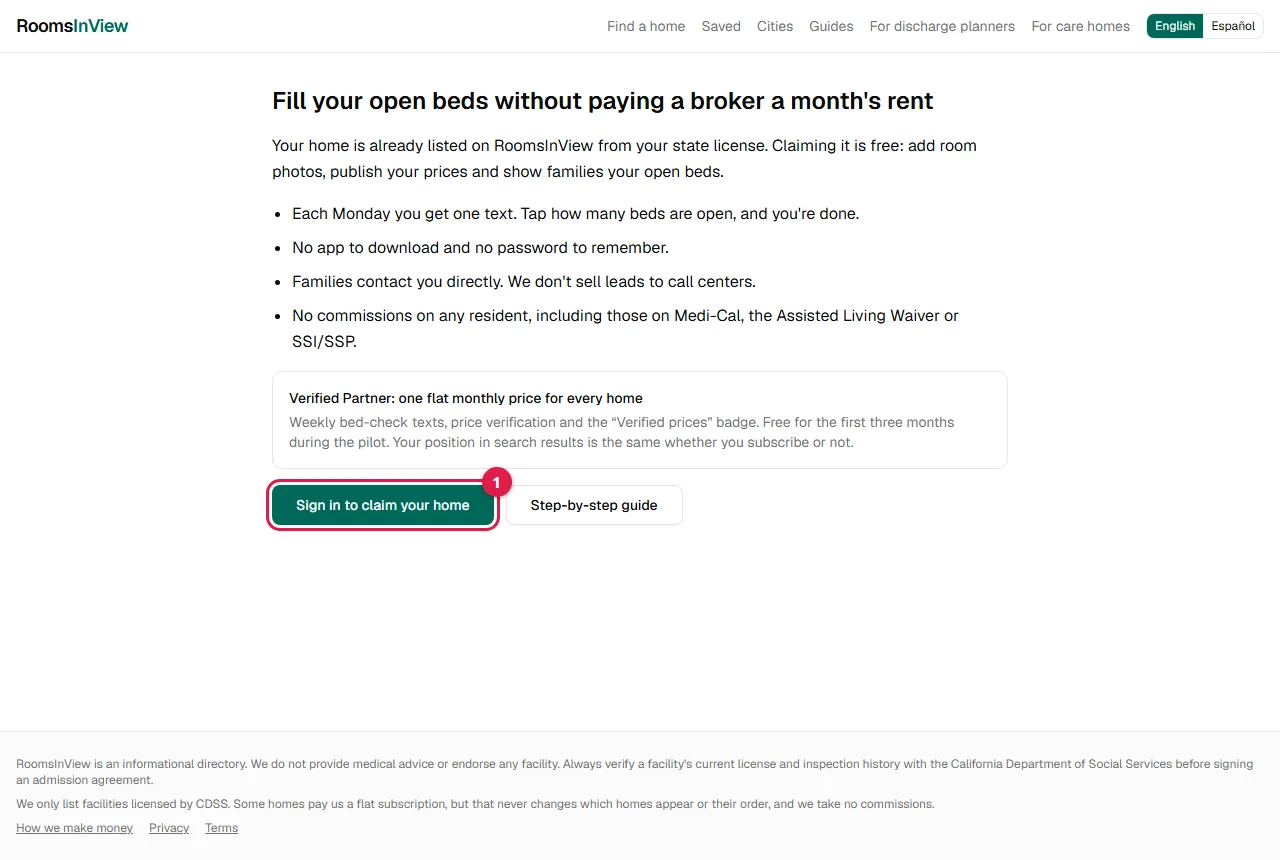
- 1Go to roomsinview.com/for-care-homes (or click For care homes at the top of the site) and click Sign in to claim your home.
B2Enter your email
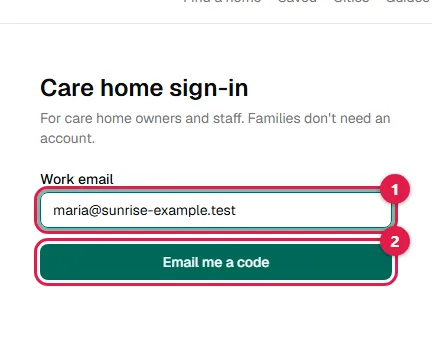
- 1Type the email address you want to use.
- 2Click Email me a code.
B3Enter the 6-digit code from your email
There is no password. You stay signed in for 30 days on that device.
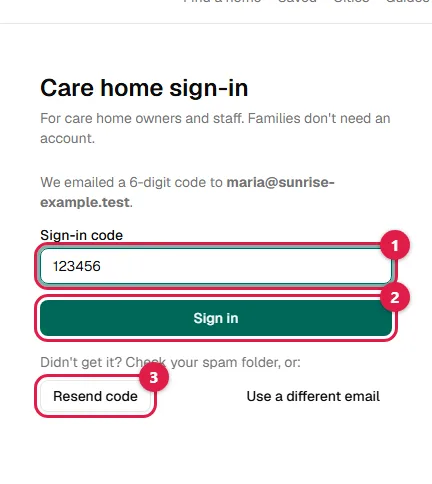
- 1Type the code from the email (it arrives within a minute; check spam if not).
- 2Click Sign in.
- 3No email? Click Resend code. Use the newest code; older ones stop working.
B4Claim your home
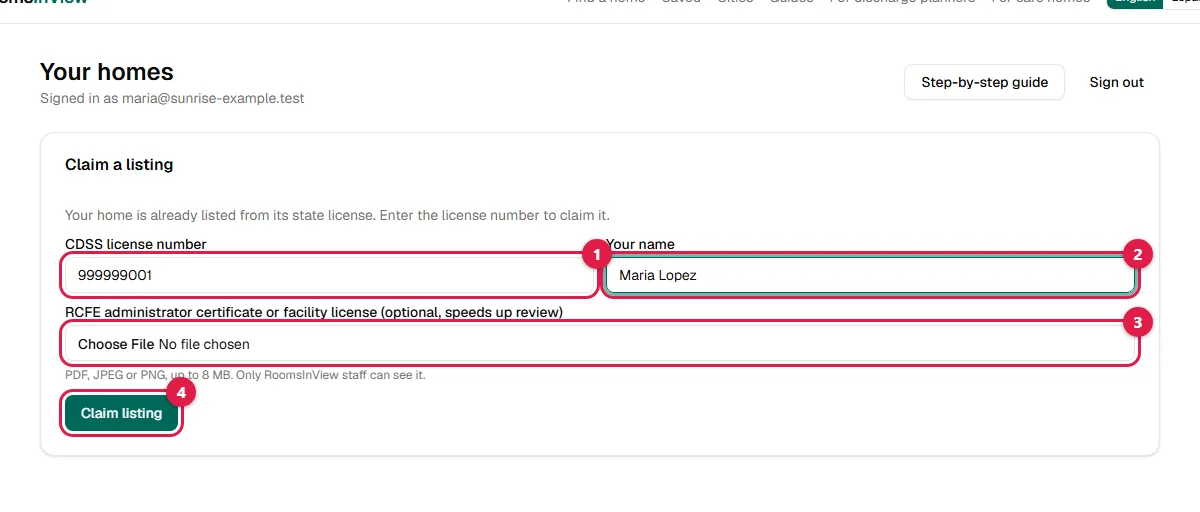
- 1Your 9-digit CDSS license number.
- 2Your name.
- 3Optional, but faster: a photo or PDF of your administrator certificate or facility license. Only RoomsInView staff see it.
- 4Click Claim listing.
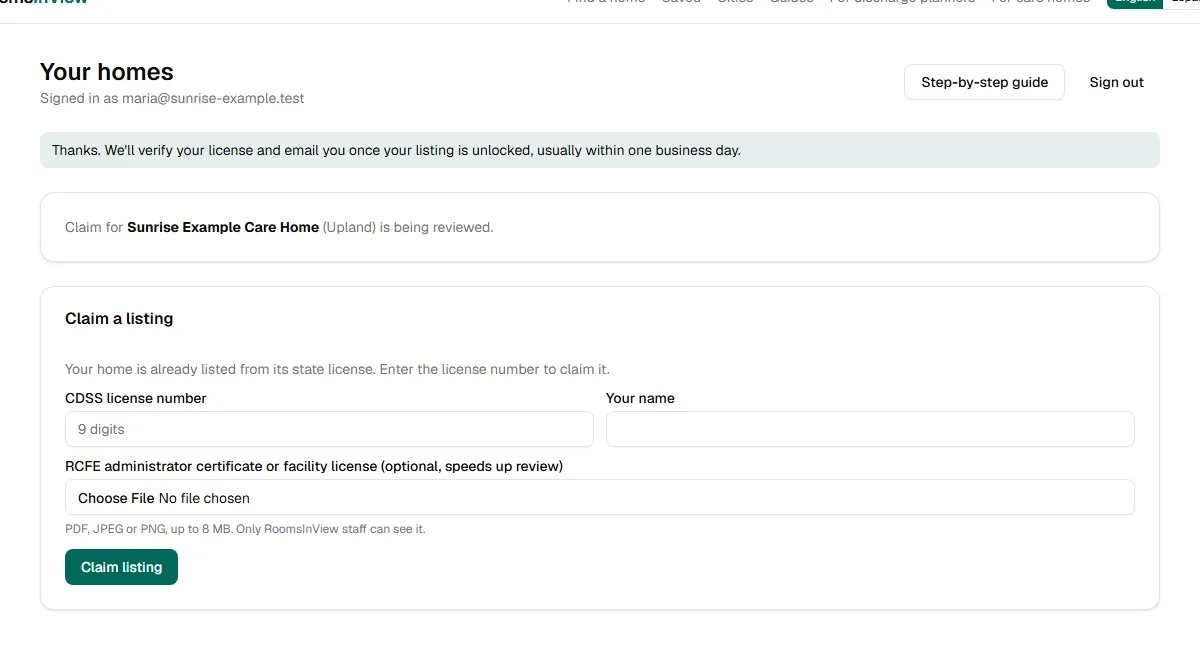
B5Wait for approval
We check every claim to make sure only the real owner can change a listing. We may call the phone number on your state license. Most claims are approved within one business day; you'll see your home appear when you sign in again.
2. Set up your listing
Everything below is on one page. Fill in each section and click its save button. You can come back and change anything at any time.
1Open your listing
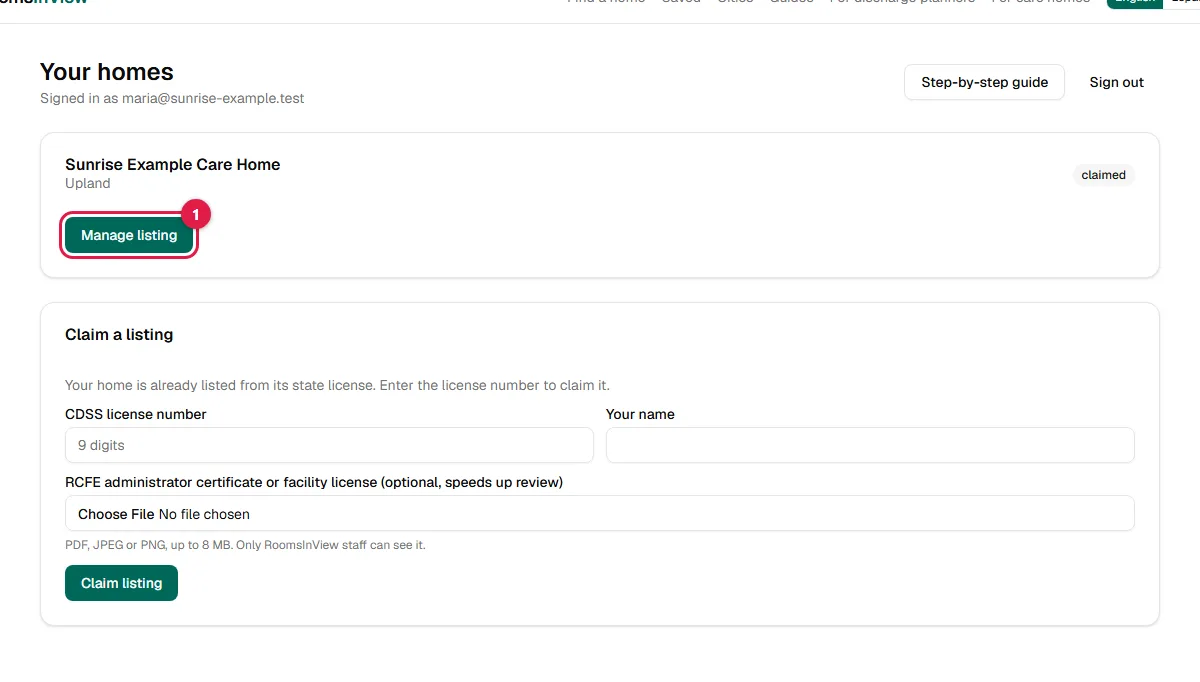
- 1Click Manage listing next to your home.
2Accept the Partner Agreement
The main points: keep your listing accurate, honor the prices you publish for 14 days, and only show your real home. Payment never changes your place in search.
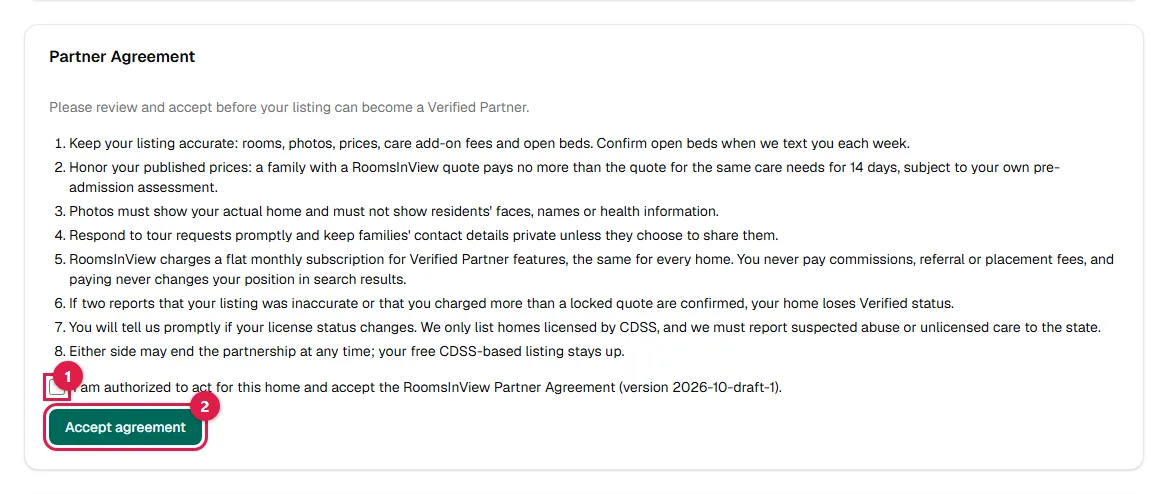
- 1Read the short list of terms, then tick the box.
- 2Click Accept agreement.
3Add your rooms
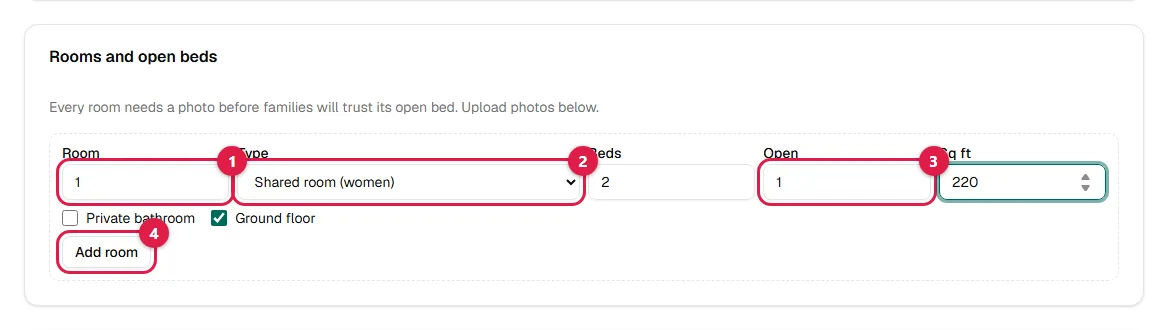
- 1A room name or number (for example 1, 2, or Garden room).
- 2Private, shared for women, or shared for men.
- 3How many beds are open right now.
- 4Click Add room. Repeat for each room.
4Update open beds whenever they change
Families see homes with confirmed open beds first. If you turn on the weekly text (step 10), we'll remind you every Monday.
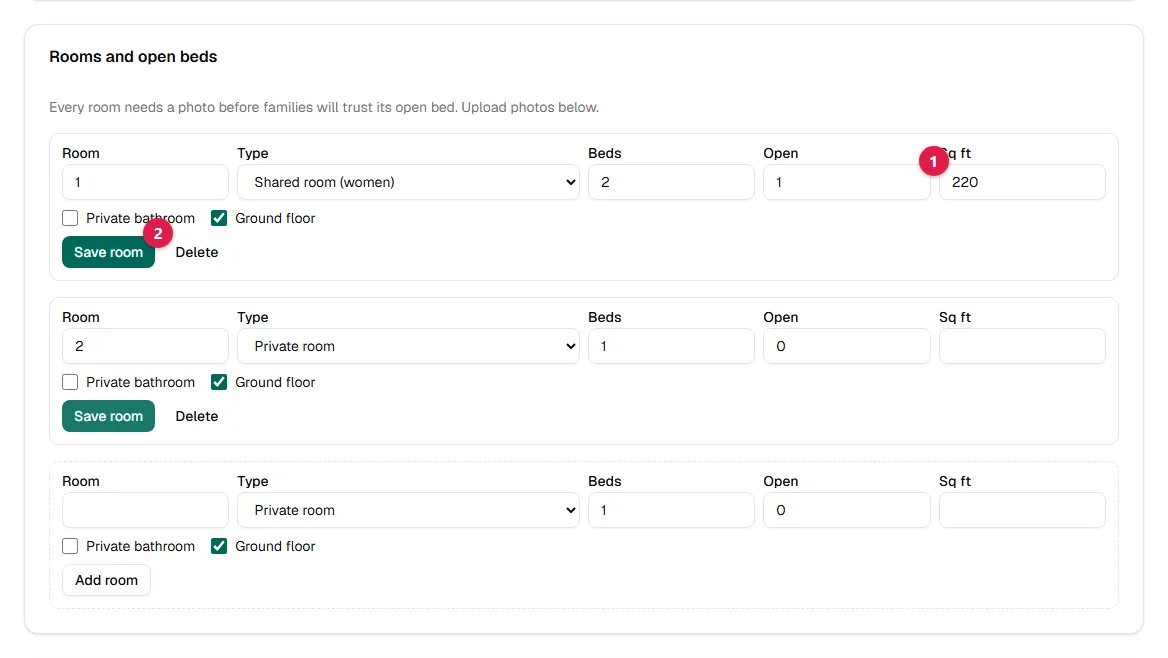
- 1Change the number of open beds.
- 2Click Save room.
5Enter your monthly prices
Families get an itemized price from these numbers. Quotes they already locked keep their price for 14 days.
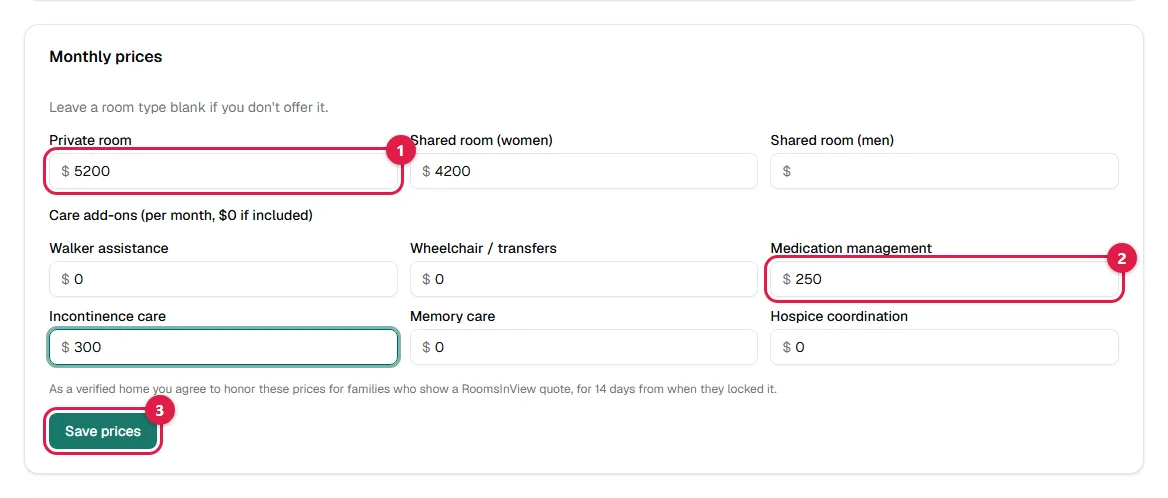
- 1Base monthly price for each room type you offer (leave blank if you don't offer it).
- 2Care add-ons such as medication help or incontinence care ($0 if included).
- 3Click Save prices.
6Upload photos
Don't include residents' faces, names or health information. Location data is removed from photos automatically.
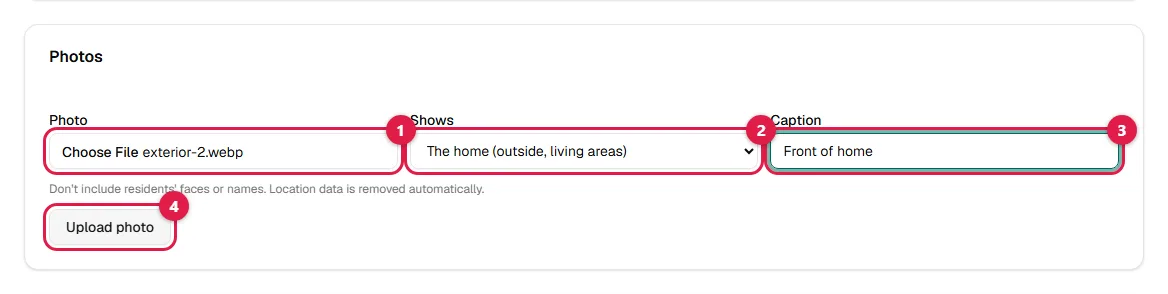
- 1Choose a photo from your phone or computer.
- 2Pick what it shows: the home, or a specific room.
- 3A short caption (optional).
- 4Click Upload photo. Add one for the outside, the living areas and every room.
7Photos appear after a quick review
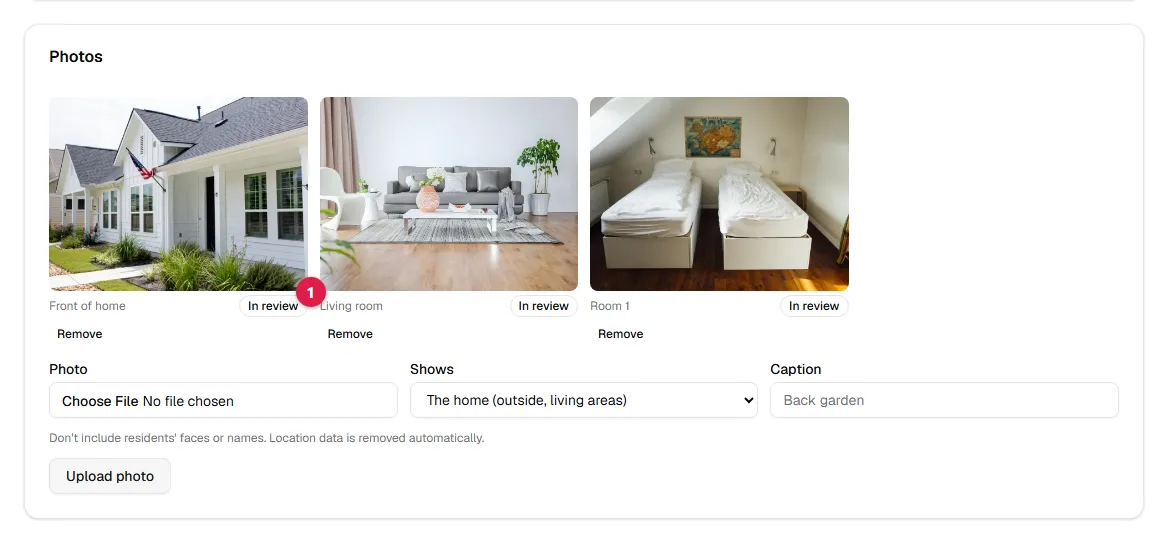
- 1In review means RoomsInView staff will check it shortly (usually the same day). Then it shows on your listing.
8Introduce your team
Families want to know who will care for their loved one. Only add people who said yes.
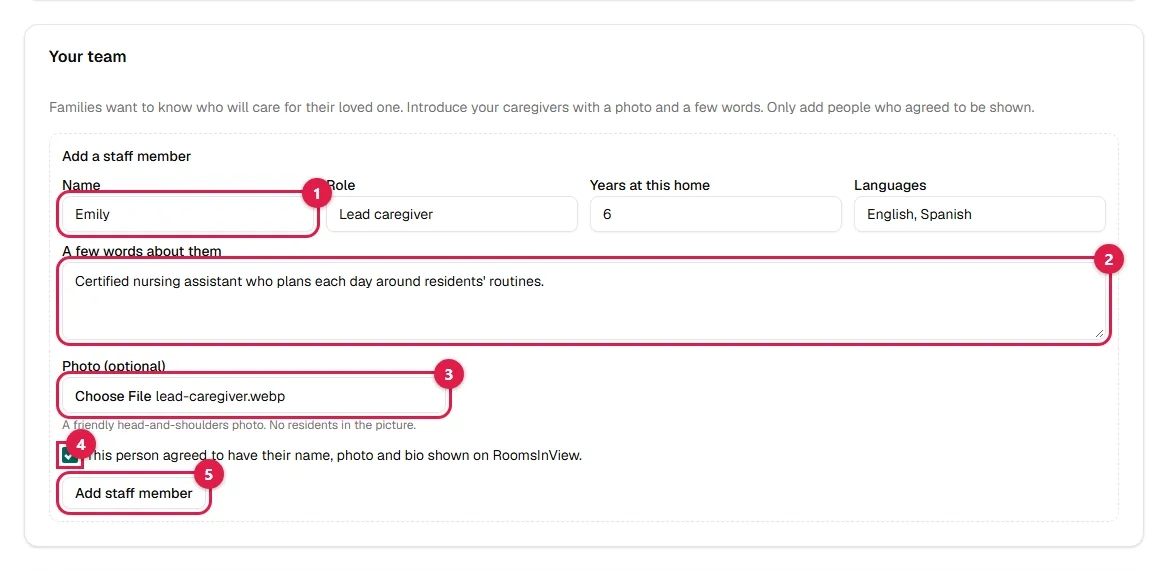
- 1Their name, role, years at your home and languages.
- 2A few friendly words about them.
- 3A head-and-shoulders photo (optional).
- 4Tick the box to confirm this person agreed to be shown.
- 5Click Add staff member. Repeat for each person.
9Describe your home
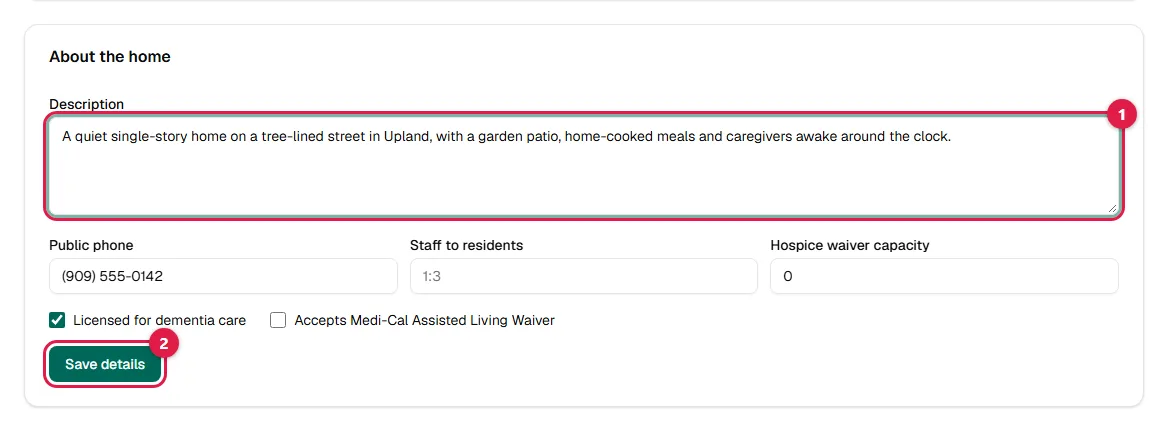
- 1A few sentences families will read: the setting, meals, activities, what makes your home special.
- 2Click Save details.
10Turn on the weekly bed check by text (recommended)
Every Monday we text you a one-tap link to confirm your open beds. Reply STOP at any time to stop the texts.
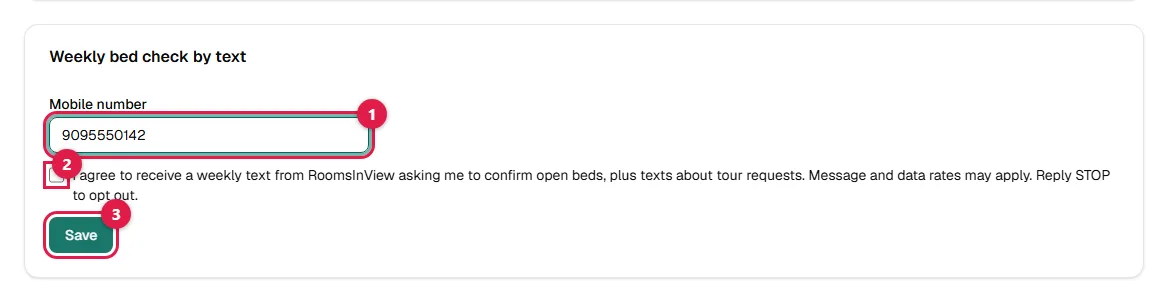
- 1Your mobile number.
- 2Tick the box to agree to the weekly text.
- 3Click Save.
3. See your listing and your numbers
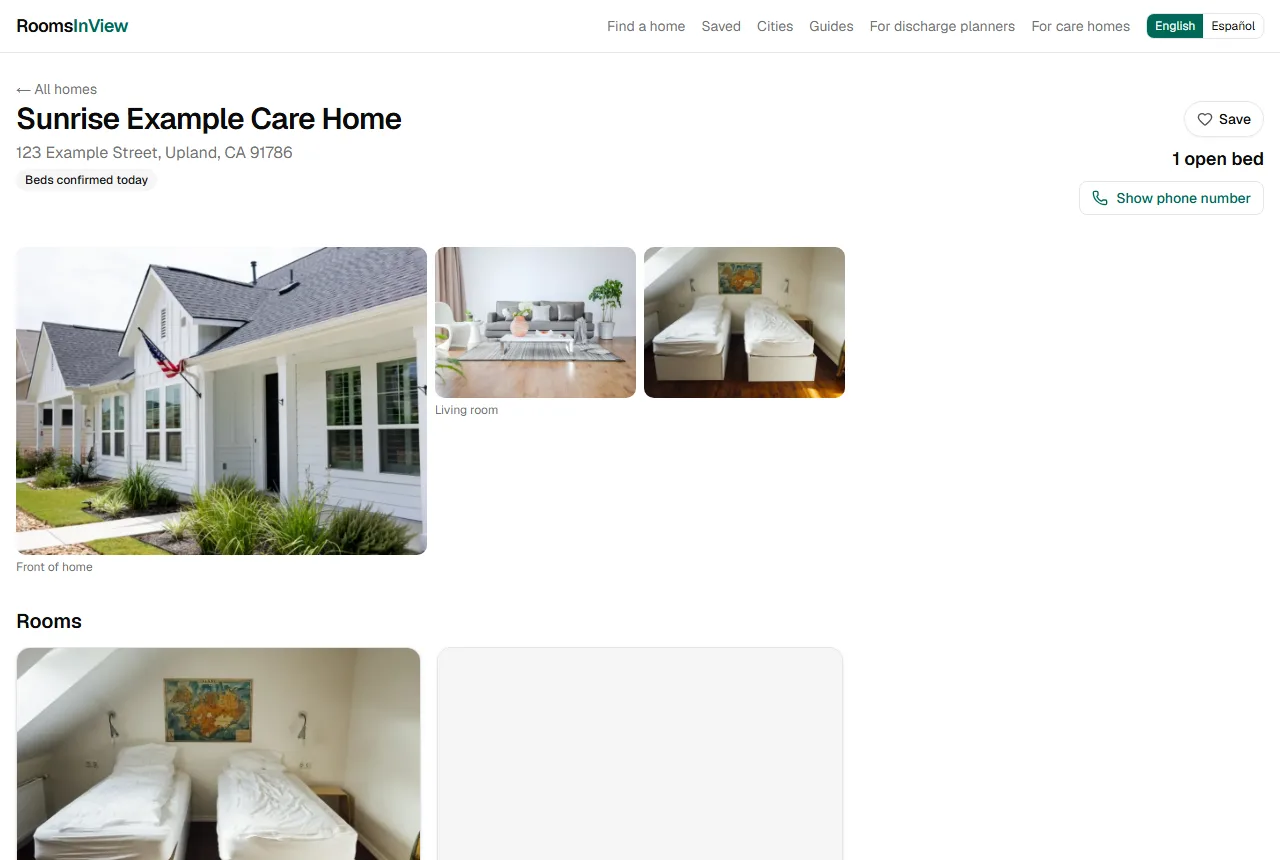
1Your listing, as families see it
Click View public listing at the top of your page to see it. Phone numbers are behind a “Show phone number” button, so we can count how many families asked for yours.
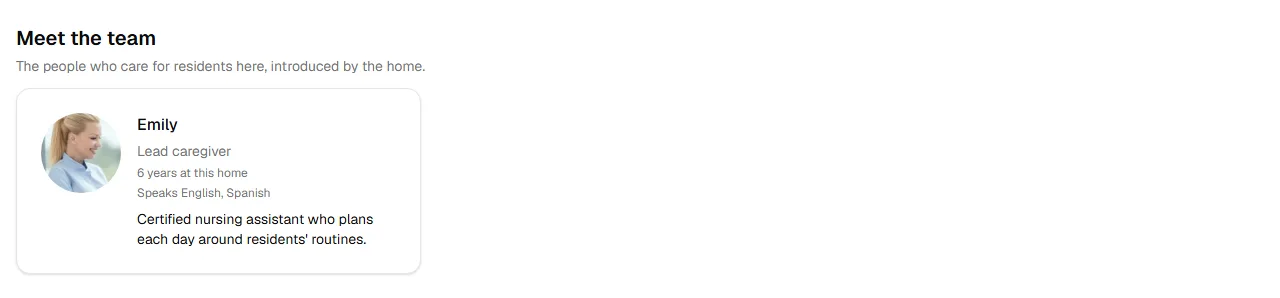
2Your team on the listing
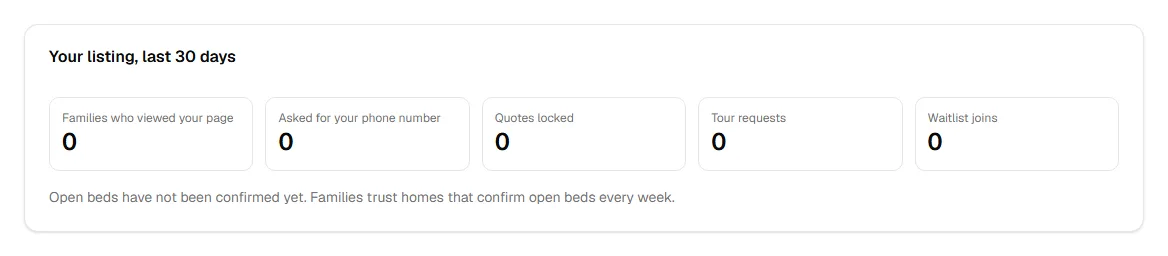
3Your numbers
At the top of your page: how many families viewed your listing, asked for your phone number, locked a quote, requested a tour or joined your waitlist in the last 30 days. We also email you a summary every month.
4. Keeping it up to date, and getting help
- Open beds: update them as soon as they change, or answer the Monday text.
- Tour requests: you get an email; answer from your listing page under Tour requests. Families' contact details stay private unless they choose to share them.
- Prices: change them any time; families who already locked a quote keep their price for 14 days.
- Sign in again: go to roomsinview.com/login and enter your email.
Questions or stuck on a step? Email hello@roomsinview.com and we'll help, or set it up with you over the phone.